How to Connect ChatGPT to WordPress to Build and Run Your Site
With Fabrement, ChatGPT does more than answer questions about WordPress: it builds and runs the site. It creates custom Gutenberg blocks, adds custom fields and site-wide settings, turns Figma frames into WordPress pages, sets up SEO with Yoast and translates the site with WPML. After launch, you manage all of it from the chat, without opening wp-admin. Anything beyond that, you can add yourself: what the agent builds is ordinary WordPress code you own, like a custom theme made for your site. To get there, you connect ChatGPT to the site over MCP.
ChatGPT can work on a WordPress site through MCP: you ask in the chat, and the change happens on the site. OpenAI gives you two ways to do it. ChatGPT itself, in the browser, for everyday changes in plain words. And Codex, OpenAI’s coding agent, which runs in the ChatGPT desktop app, in a terminal and in your code editor, for building and bigger jobs.
This guide shows the steps for Fabrement in each of them: ChatGPT on the web, Codex in the desktop app, the Codex CLI and IDE extension, and the application password route for sites and machines where OAuth is not an option.
Key takeaways
- ChatGPT connects with OAuth. Create an MCP app with your site’s address (after turning on Developer mode, if your plan needs it) and approve access on your own site. No password to copy.
- It needs a paid ChatGPT plan and works in ChatGPT on the web, not in the mobile app. On a workspace, an administrator may need to grant permission first.
- Codex is a separate connection. Connecting ChatGPT does not connect Codex. Codex in the desktop app, the CLI and the IDE extension share one configuration, so you connect it once for all three.
- No OAuth? Use an application password. For a site without HTTPS, or Codex on a server. The key goes in the Authorization header, never in the Bearer token field.
- The site must be reachable over HTTPS. ChatGPT on the web needs a public address; Codex on your computer can also reach a local site with a trusted certificate.
On this page
- Which way should you use?
- Before you start
- 1. Connect ChatGPT
- 2. Connect Codex in the ChatGPT desktop app
- 3. Connect the Codex CLI or IDE extension
- 4. Without OAuth: an application password
- When it does not work
- Revoking access
- What ChatGPT and Codex can do once connected
Which way should you use?
| How it signs in | Needs | Best for | |
|---|---|---|---|
| ChatGPT (web) Recommended | OAuth: create the MCP app once, then approve on your site | A paid ChatGPT plan (Developer mode on some plans), a public HTTPS site | Everyday changes in plain words, nothing to install |
| Codex in the ChatGPT desktop app | OAuth: add the URL, then Authenticate and approve on your site | The ChatGPT desktop app, an HTTPS site | Building sections and pages, bigger jobs |
| Codex CLI or IDE extension | OAuth, with two commands | The Codex CLI or the extension in VS Code or Cursor | Developers who work in a terminal or a code editor; local sites with a trusted HTTPS certificate |
| Application password | A key in the Authorization header | An administrator account | Sites without HTTPS, OAuth turned off, or Codex running on a server |
Before you start
- WordPress 6.9 or newer, PHP 8.0 or newer, and an administrator account.
- Fabrement installed and the site signed in to the Fabrement service: block code is checked and stored there, so nothing can be saved until the site is signed in.
- For ChatGPT: a paid ChatGPT plan, and a site reachable on the internet over HTTPS.
- For Codex: the ChatGPT desktop app, the Codex CLI or the Codex extension, signed in with your ChatGPT account or an OpenAI API key.
Every connection detail below comes from Fabrement → MCP Connection in wp-admin, on the ChatGPT or Codex card. Copy it from there rather than typing it: the server name and address are specific to your site.
1. Connect ChatGPT
In Fabrement → MCP Connection, pick ChatGPT. The card walks you through the same steps as below, with the server name and URL to copy.
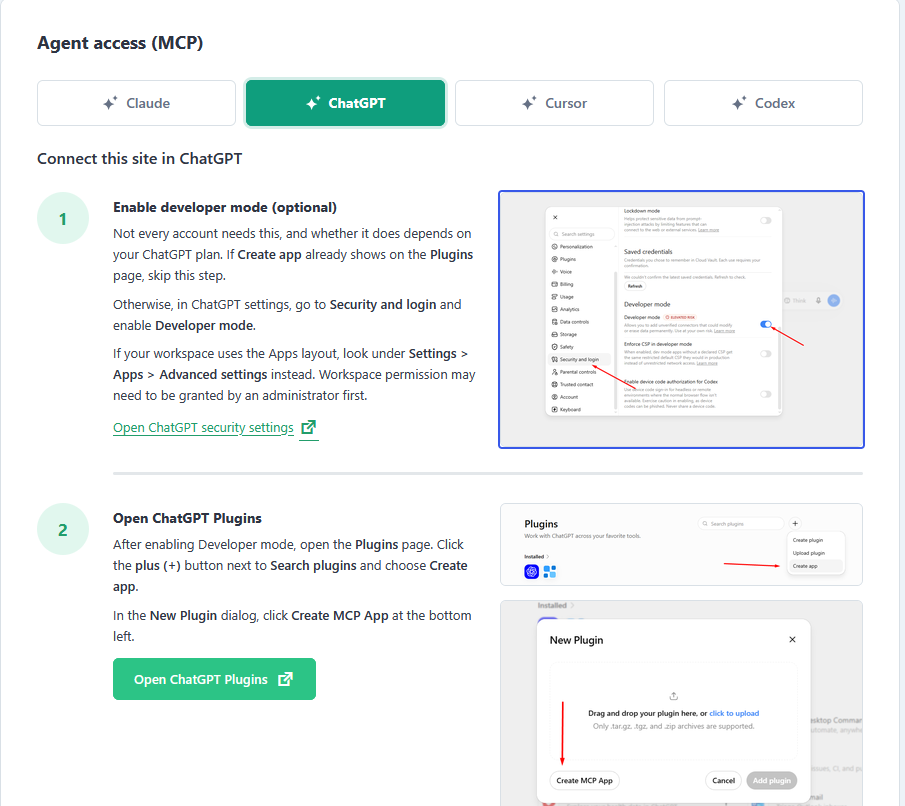
Step 1: Enable Developer mode, if your plan needs it
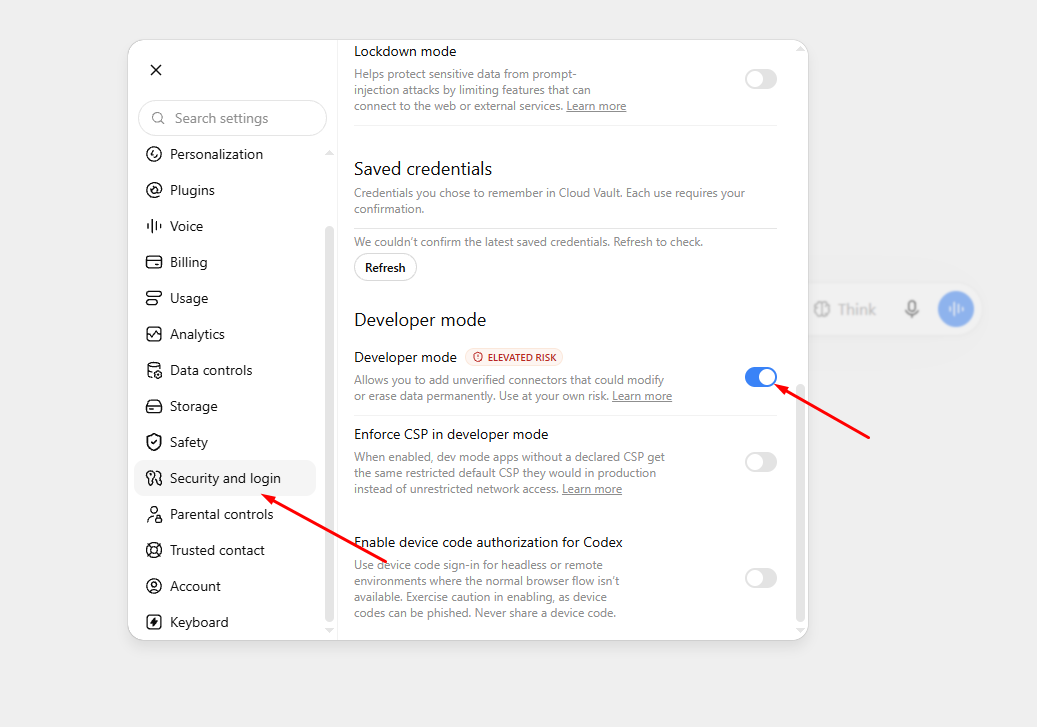
Not every account needs this, and whether yours does depends on your ChatGPT plan. If Create app already shows on ChatGPT’s Plugins page, skip this step. Otherwise, in ChatGPT’s settings, open Security and login and switch Developer mode on. If your workspace uses the Apps layout, look under Settings → Apps → Advanced settings instead; an administrator may need to grant permission first.
Step 2: Create the MCP app
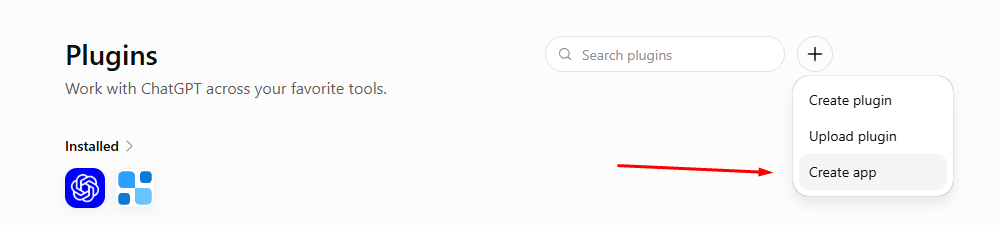
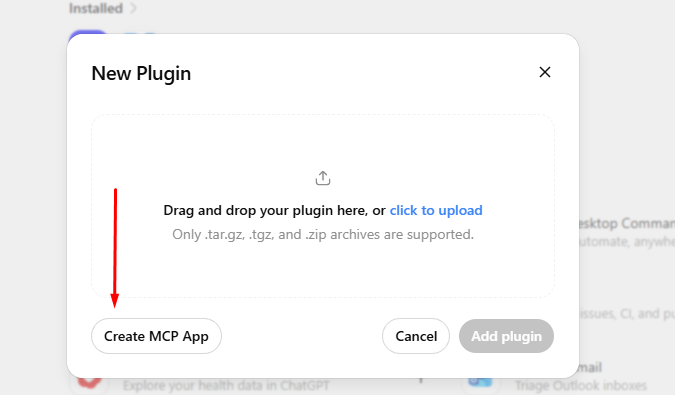
Press Open ChatGPT Plugins on the ChatGPT card. On the Plugins page, click the plus (+) button next to Search plugins and choose Create app. In the New Plugin dialog, click Create MCP App at the bottom left.
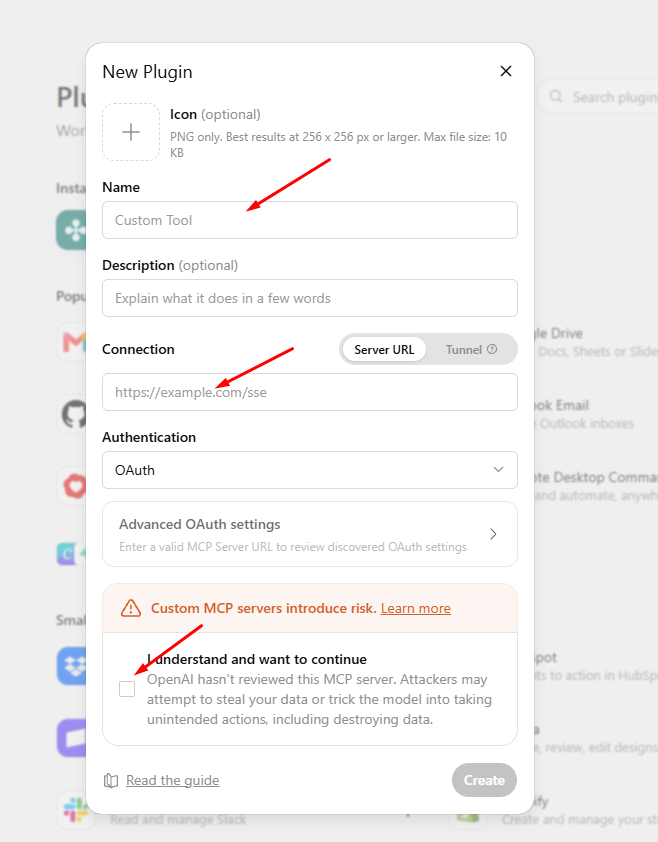
Fill in the Name and paste the MCP server URL from the ChatGPT card into Connection. Leave Authentication on OAuth, tick I understand and want to continue (ChatGPT asks this for every custom MCP server), and press Create.
Step 3: Approve access on your site
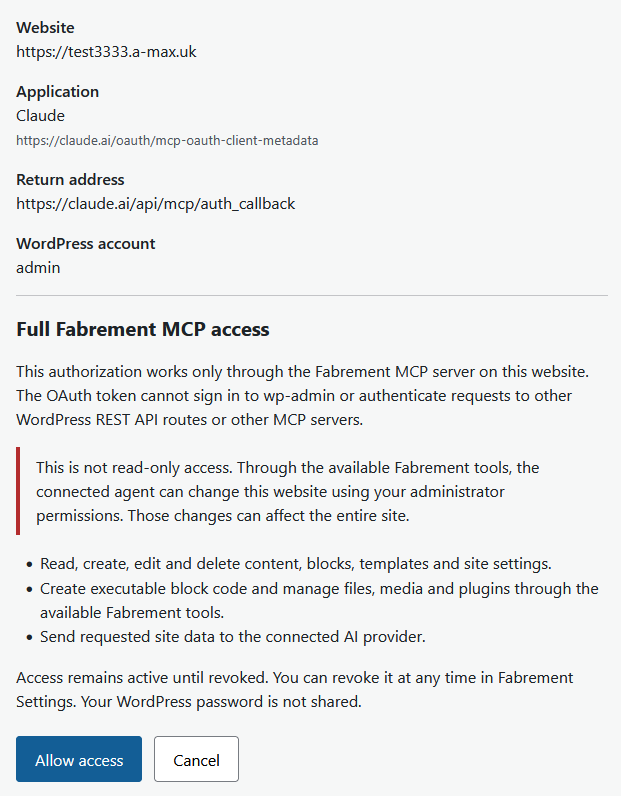
ChatGPT sends you to your WordPress site. Sign in as an administrator if asked, then press Allow access. Your WordPress password is not shared: ChatGPT receives a token that only works through the Fabrement MCP server.
Step 4: Check the connection
Open a new chat, turn the app on for the chat if it is not on already, and ask ChatGPT to list the blocks on your site. If it answers with your real blocks, you are connected.
ChatGPT treats a custom MCP app as a developer feature and shows its own warning about it. Fabrement’s operations tell the agent to ask you in the chat before publishing or moving pages to the trash, but treat the connection like an administrator: connect it only in your own account.
2. Connect Codex in the ChatGPT desktop app
Step 1: Copy the server name and URL
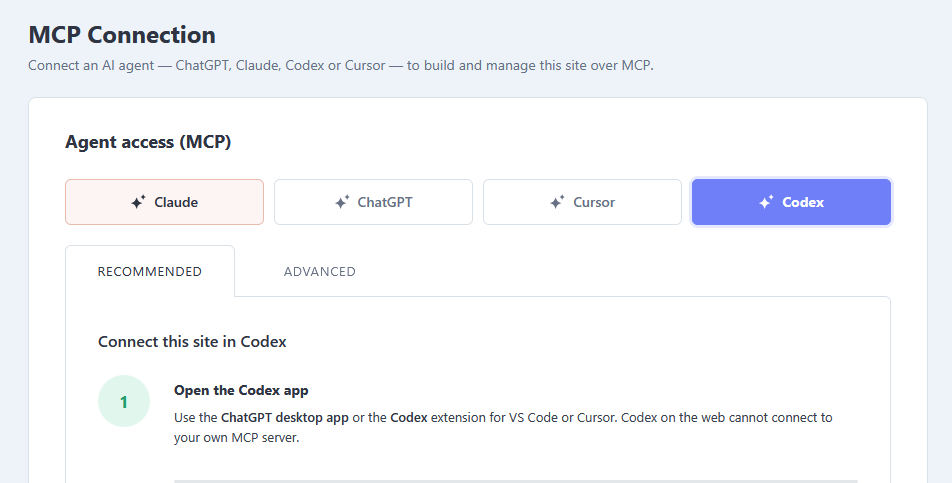
In Fabrement → MCP Connection, pick Codex and stay on the Recommended tab. Copy the server name and URL it shows. Use Codex in the ChatGPT desktop app or the Codex extension for VS Code or Cursor: Codex on the web cannot connect to your own MCP server.
Step 2: Add an MCP server in Codex
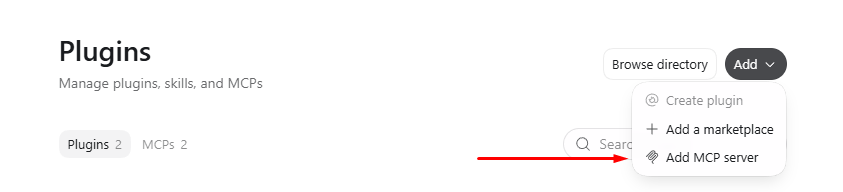
In the ChatGPT desktop app, open Codex’s Plugins page, press Add and choose Add MCP server.
Step 3: Fill in the form
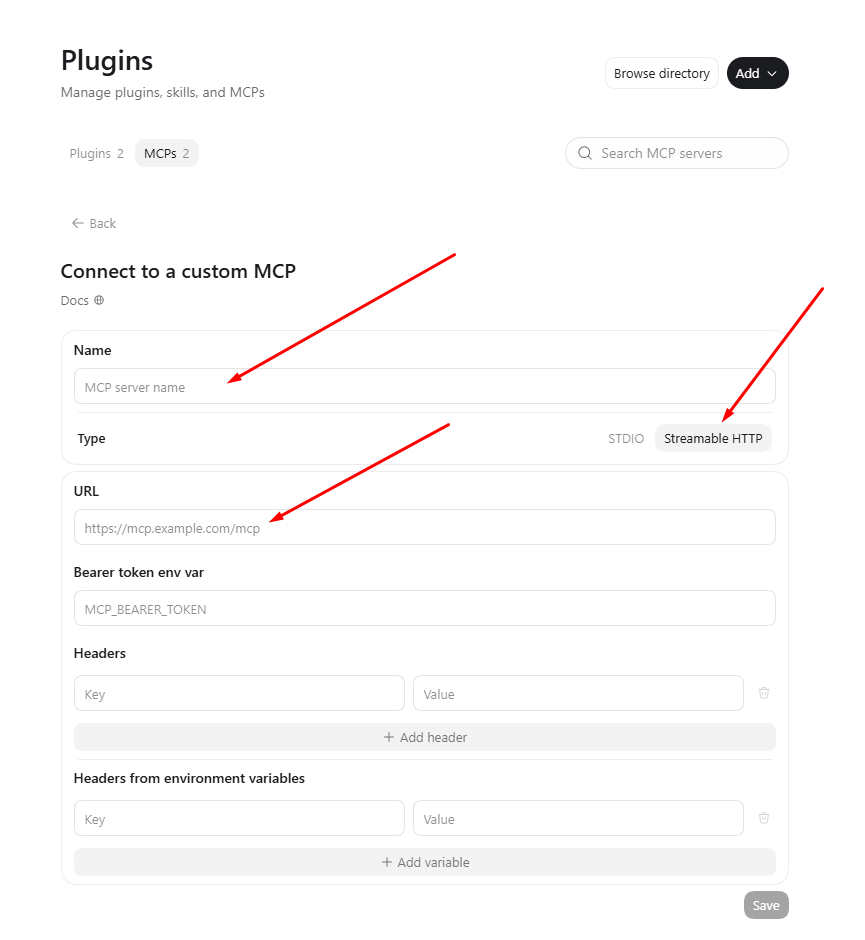
In Connect to a custom MCP, enter the name, choose Streamable HTTP, paste the URL and press Save. Leave the Bearer token and header fields empty: OAuth needs none of them.
Step 4: Authenticate and approve
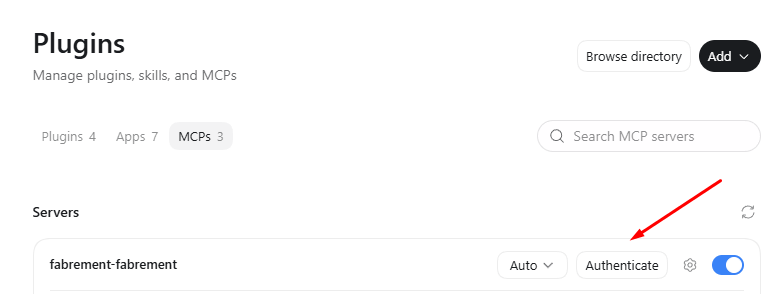
In the list of MCP servers, press Authenticate next to your site. Your WordPress site opens the same approval page as for ChatGPT: sign in as an administrator if asked, then press Allow access.
Step 5: Check the connection
Start a new Codex session and ask it to list the blocks on your site. If it answers with your real blocks, you are connected.
3. Connect the Codex CLI or IDE extension
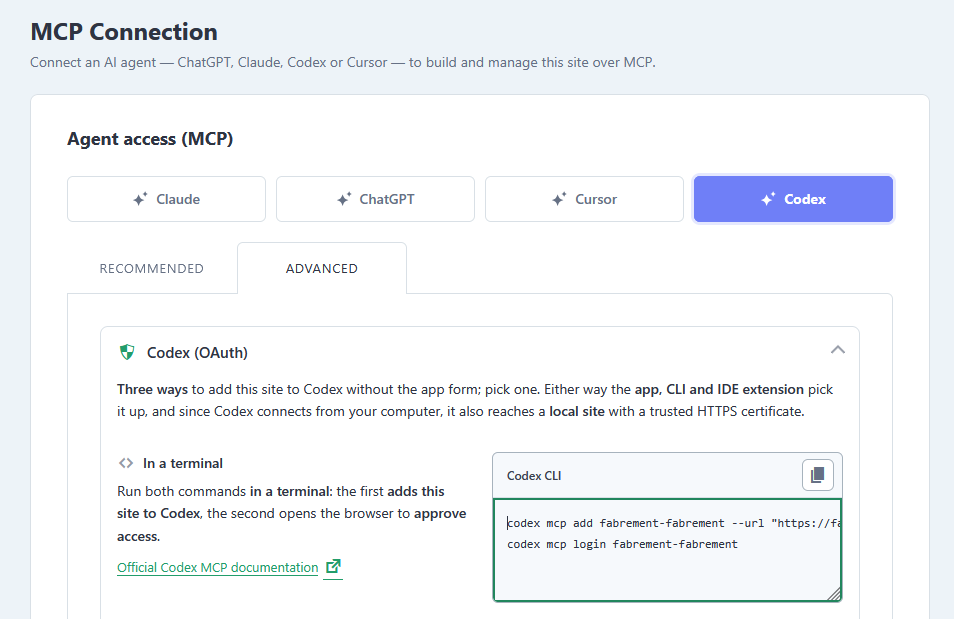
On the Advanced tab of the Codex card, Codex (OAuth) offers three ways to add your site without the app form; pick one. The quickest is a terminal: run both commands, the first adds your site to Codex and the second opens the browser to approve access. They have this shape, with your own name and address filled in:
codex mcp add fabrement-your-site --url "https://your-site.com/wp-json/fabrement/v1/mcp"
codex mcp login fabrement-your-site
The card also shows the other ways, such as a config.toml entry if you prefer to edit the file. Whichever you pick, the desktop app, the CLI and the IDE extension all pick the site up, and since Codex connects from your own computer, it also reaches a local site with a trusted HTTPS certificate.
4. Without OAuth: an application password
Use an application password with Codex when OAuth is not an option: the site has no HTTPS, OAuth is turned off, or Codex runs where no browser can open to approve access, such as a server. ChatGPT on the web connects with OAuth only.
- In Fabrement → MCP Connection, pick Codex, open the Advanced tab, then Application password, and press Generate application password.
- Pick one form: a
codex mcp addcommand for PowerShell or bash, the URL and header for the app’s form, or a~/.codex/config.tomlentry. - In the app’s form, put the key in the Authorization header and leave the Bearer token field empty. The key is a Basic authorization header, so the Bearer field makes every request fail with 401.
The config.toml entry has this shape:
[mcp_servers.fabrement-your-site]
url = "https://your-site.com/wp-json/fabrement/v1/mcp"
http_headers = { "Authorization" = "Basic YOUR_KEY" }
The password is shown once and works until you revoke it. Treat it like an administrator password: never paste it into a screenshot, a chat or a shared document, keep it out of any config file you commit to Git, and disconnect it in the Connection access card when the work is done. On Windows the commands use PowerShell; start Codex from that same terminal, because apps that are already running do not pick up new environment values.
When it does not work
| What you see | What it is |
|---|---|
| Create app is missing in ChatGPT | Developer mode is off. Turn it on in ChatGPT’s settings under Security and login, or under Settings → Apps → Advanced settings on a workspace; an administrator may need to grant permission. |
| The app is not available in the ChatGPT mobile app | Custom MCP apps work in ChatGPT on the web only. Use a browser. |
| ChatGPT cannot reach the site | The site is local, not on HTTPS, or blocked by a firewall. ChatGPT on the web needs a public HTTPS address; use Codex for a local site. |
| Authenticate does nothing, or the approval page does not open | The site has no HTTPS, or OAuth is turned off in the Connection access card. Switch it on, or use an application password with Codex. |
| 401, or «incorrect password» | With an application password: the key went into the Bearer token field instead of the Authorization header, the setup was cut off when copied, or the key was revoked. Generate a fresh one. |
| Codex on the web cannot find the server | Codex on the web cannot connect to your own MCP server. Use Codex in the ChatGPT desktop app, the CLI or the extension for VS Code or Cursor. |
The server is missing from Codex’s /mcp | It was added to a project’s .codex/config.toml, which only applies inside that project. Add it with the commands above to use it everywhere. |
| Connected, but no tools | The chat or session started before you connected: open a new one. In the CLI, codex mcp list shows whether the server is there. |
| Codex times out | A slow host. Raise startup_timeout_sec (default 10 seconds) or tool_timeout_sec (default 60 seconds) for the server in config.toml. |
Revoking access
OAuth access and application passwords both stay active until you revoke them. The Connection access card on Fabrement → MCP Connection lists every connection to the site, whichever client set it up. Press Disconnect next to one to revoke it, and remove the app in ChatGPT or the server in Codex too. Switching OAuth off disconnects every OAuth client at once and leaves application passwords as they are.
What ChatGPT and Codex can do once connected
The same as any other agent on the site: build new blocks as code on the site’s design system, create pages from existing sections, edit text and images, manage menus, forms, templates, custom post types, fields and SEO. They work through a fixed set of operations, not a shell: no file access beyond the blocks they write, a read-only database operation, and publishing as a separate step from saving. What that looks like in daily work is in three weeks of WordPress without wp-admin.
Frequently asked questions
Which ChatGPT plan do I need to connect WordPress?
A paid plan. Whether you also need to turn on Developer mode depends on the plan: if Create app already shows on ChatGPT’s Plugins page, you do not. On a workspace, an administrator may need to grant permission first. Codex is included in ChatGPT plans and can also run on an OpenAI API key.
Can I manage my WordPress site from the ChatGPT mobile app?
Not at the moment. MCP apps created in Developer mode work in ChatGPT on the web, not in the mobile app, and ChatGPT’s agent mode does not use them. Work from ChatGPT in a browser, or connect Claude, whose connector is also available in its mobile app.
Does connecting ChatGPT also connect Codex?
No. Codex now runs inside the ChatGPT desktop app, but Fabrement treats ChatGPT and Codex as separate clients: each one has its own card in Fabrement → MCP Connection and its own approval. Connect the one you use, or both, and each appears on its own line in the Connection access card.
Why must the Bearer token field stay empty when I use an application password?
The application password is sent as a Basic Authorization header. Codex’s Bearer token field sends the key in a different format, which WordPress rejects with a 401 error. Put the Authorization header in the header field and leave the Bearer token field empty. With OAuth there is nothing to paste at all.
Can I connect Codex and Claude Code to the same site?
Yes. Connect each one separately, with OAuth or its own application password. Each connection gets its own line in the Connection access card on Fabrement → MCP Connection, so you can see which one was used last and disconnect one without cutting off the other.
Is it safe to give an AI agent access to my site?
Treat the connection like an administrator: whether it uses OAuth or an application password, the agent acts as your administrator user, with write and delete access to content. Connect only clients you trust, work on staging when the change is significant, keep versions so a change can be rolled back, disconnect the agent in the Connection access card when the work is done, and review anything that touches payments, authentication or personal data yourself.
Using another client? See how to connect Claude to WordPress. For Cursor, see how to connect Cursor to WordPress.
Sources
- Developer mode and MCP apps in ChatGPT, OpenAI Help Center (plans, web only, creating an MCP app)
- MCP documentation for Codex, OpenAI (
codex mcp add,codex mcp login, Authenticate,config.tomlkeys and defaults, the shared configuration) - Fabrement’s own AGENTS.md (plugin version 1.4.0) and the MCP Connection screen
Checked on 30 September 2026, with Fabrement 1.4.0. If a step has changed, tell us and we will correct it.
Related articles
How to Connect Claude to WordPress to Build and Run Your Site
Connect Claude to a WordPress site in the browser, the desktop app or Claude Code: one-click OAuth, the terminal commands or a…
How to Connect Cursor to WordPress to Build and Run Your Site
Connect Cursor to a WordPress site over MCP: the two-click Add to Cursor button, letting Cursor set up the connection itself, the…
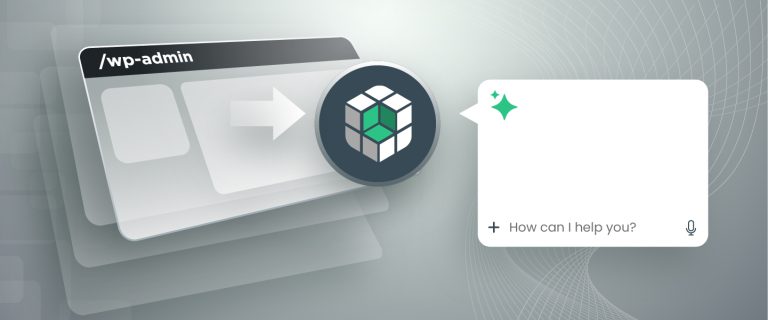
All the Power of WordPress, Without the Admin
Three weeks of running this website without opening the WordPress admin once, and why that matters most to the people who never…