How to Build and Manage a Multilingual WordPress Site with an AI Agent
To build a multilingual WordPress site with AI, you combine two things: WPML, which manages the languages, and an AI agent connected through Fabrement, which does the work. The agent carries the whole site into every language, not only the text: pages with their blocks and SEO, templates, post types and their URLs, fields, the 404 page and the words written into the site’s code. One page in three languages stays one page, linked as translations. This guide covers what you need, the requests to send, and how to keep the languages in step afterwards.
Key takeaways
- You need WPML Multilingual CMS, the free Fabrement plugin and an AI agent connected over MCP. Other translation plugins, such as Polylang or TranslatePress, are not supported.
- Your own agent does the translating, on your own AI plan. WPML’s translation credits are not used.
- The agent carries the whole site, not only page text: templates, post types and their URLs, fields, strings in code, the 404 page, image alt text and SEO.
- Translation works on blocks built with Fabrement. Each one declares which of its fields are words, so text gets translated while phone numbers, emails, brand names and links stay identical. Text in core Gutenberg blocks or other plugins’ blocks is not translated.
- Every translation arrives as a draft. A native speaker should read the key pages before you publish.
- When the original changes, ask the agent to re-translate it. Nothing changes in the other languages on its own.
On this page
Requirements
| What | Needed |
|---|---|
| WPML | The Multilingual CMS plan or higher. It includes String Translation, which the agent uses for words written into the site’s code. |
| Languages | At least two active in WPML. The agent’s language tools appear only then. |
| Fabrement | The plugin, installed and signed in. |
| Blocks | Pages built with Fabrement blocks. The agent translates only those: text in core Gutenberg blocks or other plugins’ blocks is not translated. |
| AI agent | Claude, ChatGPT, Codex or Cursor, connected to the site over MCP. |
| AI plan | Enough usage for long sessions. Translating a whole site into several languages is a lot of work, and a basic plan can run out halfway. |
The steps
1. Add your languages in WPML
Set up WPML and add your languages in its settings. This step is yours: on a site with one language, the agent does not see any language tools. Once two or more languages are active, it can carry content into each of them.
2. Decide what is shared and what is translated
Not everything needs a version per language. A post type can stay untranslated, with one shared set for every language: price lists or partner logos, for example. Fields follow a rule each:
- Translated: text fields, such as a description.
- Copied and kept in step: values that must match everywhere, such as a price or a date.
- Copied once, then edited apart: a starting value each language can change.
- Filled per language: left empty for each language to fill in.
Tell the agent which is which before you translate, so prices and dates stay correct everywhere from the start.
3. Translate the pages
Ask for the pages and languages you want:
Translate the home page and the About page into German and French.
Keep them as drafts.
The agent copies each page with its blocks, image, template, SEO settings and categories, links the copy to the original as its translation, then translates the text and the SEO title and description. This works because every block built with Fabrement declares which of its fields are words: headings, descriptions, button labels, formatted text, repeater rows. Those are translated, and they also reach WPML’s translation editor if a person translates instead. Phone numbers, emails, brand names and links are not words, so they stay identical in every language. Each translation is created as a draft, whatever the status of the original.
4. Carry the rest of the site
A multilingual site is more than its pages. Ask the agent for the parts around them:
- Header and footer: their wording is translated once for the whole site and shown in the visitor’s language.
- Post types, categories and terms: their own names and URL bases per language, so a German visitor sees German addresses.
- Words written into the code: a “Back to home” or “Next” inside a layout is found in the code, registered with WPML String Translation and translated from the chat.
- The 404 page: a version per language, like any other page.
- Images: one image, with alt text per language.
- The language switcher: list every language, or only those a page really exists in.
Translate the header, footer and the fixed words in the site's code into German.
Give the Case Studies post type a German URL base.
5. Check SEO and what is still missing
Each language gets its own SEO title and description. Ask the agent for a report of what is still untranslated or missing across pages, archives and terms, and whether the home page exists in every language. It is the quickest way to see where a language is incomplete before you publish it.
What is still untranslated or missing in German?6. Have a native speaker review, then publish
AI translation is good, but it is not a native speaker. Before you publish, have someone who speaks the language read the pages that matter most: the home page, your services, anything legal. Ask for corrections in the same chat, or edit the text in the WordPress editor yourself. Then publish each translation when it is ready.
Managing the site over time
- When the original changes: the other languages do not change on their own. Ask the agent to re-translate the page, and review the result as before.
- Prices and dates: fields set to “copied and kept in step” follow the original by themselves.
- Adding a language: add it in WPML first, then ask the agent to carry the site into it, and check the missing report.
The English Services page changed. Re-translate it into German and French as drafts.When it does not work
| What you see | What it is |
|---|---|
| The agent has no language tools | WPML has fewer than two active languages. Add the second language in WPML. |
| The agent will not change a translated page | That page is managed in WPML’s own translation editor, and the agent does not overwrite it. It points you to that screen instead. |
| A price differs between languages | The field was translated instead of kept in step. Ask the agent to set that field to “copied and kept in step”. |
| The agent stops halfway through the site | Your AI plan ran out of usage for the session. Continue in a new session or on a larger plan. |
| Part of a translated page is still in the original language | That section uses core Gutenberg blocks or another plugin’s blocks, and the agent translates only blocks built with Fabrement. Ask it to rebuild the section as a Fabrement block, then translate the page again. |
| The site uses Polylang or TranslatePress | Not supported. Fabrement works with WPML only. |
Frequently asked questions
Which WPML plan do I need?
Does it translate core Gutenberg blocks or other plugins' blocks?
Do I pay for WPML translation credits?
Are translations published right away?
When I change the original page, do the translations update?
Does it work with Polylang or TranslatePress?
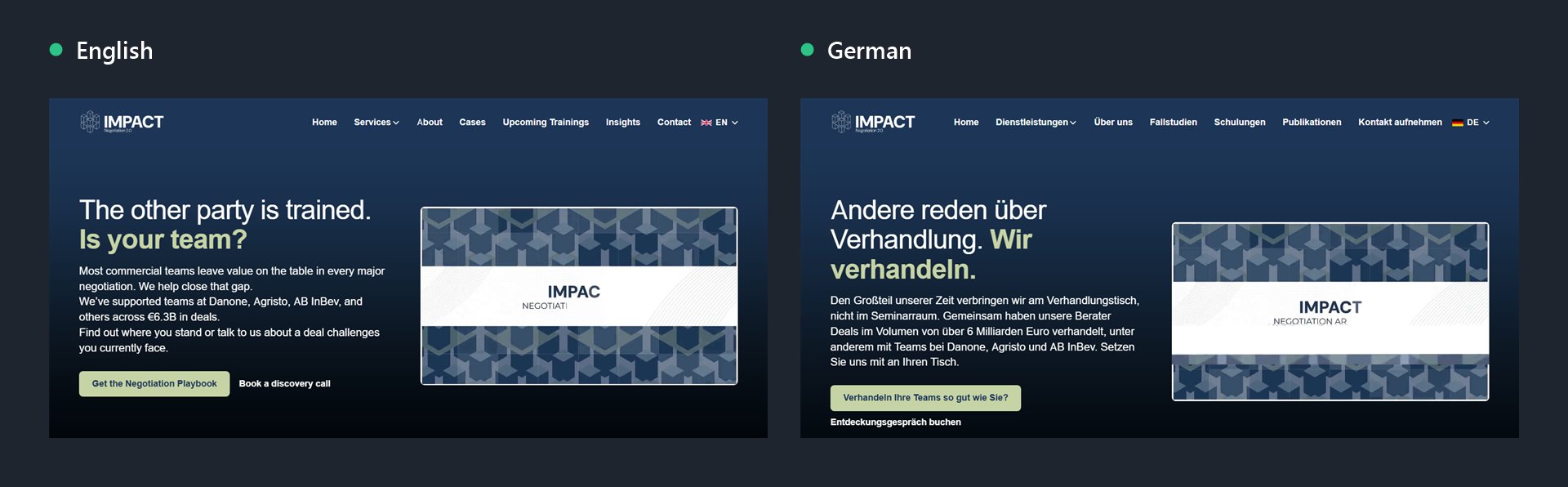
See it on a real site: a multilingual WordPress site its owners run with an AI agent, in four languages. Not connected yet? Start with how to connect Claude to WordPress.
Sources
Fabrement’s multilingual features from our own AGENTS.md, section “Several languages, with WPML”. WPML plans from WPML’s pricing page. Checked on 7 October 2026.
Related articles

How to Convert Figma to Gutenberg Blocks with an AI Agent
Turn a Figma frame into native Gutenberg blocks on your WordPress site with an AI agent: the token, the frame, the request,…
How to Connect Claude to WordPress to Build and Run Your Site
Connect Claude to a WordPress site in the browser, the desktop app or Claude Code: one-click OAuth, the terminal commands or a…

Running WordPress From Your Coding Agent: What MCP Actually Changes
The Model Context Protocol lets a coding agent operate WordPress directly instead of writing code you copy and paste. Here is what…