How to Connect Cursor to WordPress to Build and Run Your Site
With Fabrement, Cursor does more than write code next to WordPress: it builds and runs the site itself. It creates custom Gutenberg blocks, adds custom fields and site-wide settings, turns Figma frames into WordPress pages, sets up SEO with Yoast and translates the site with WPML. After launch, you manage all of it from your editor, without opening wp-admin. Anything beyond that, you can add yourself: what the agent builds is ordinary WordPress code you own, like a custom theme made for your site. To get there, you connect Cursor to the site over MCP.
Cursor can work on a WordPress site the same way it works on your code: through MCP. This guide covers what you need, the steps, and what to check when it does not work.
Key takeaways
- You need WordPress 6.9 or newer, PHP 8.0+, HTTPS, an administrator account and a paid Cursor plan: the free Hobby plan does not include MCP. Without HTTPS, WordPress refuses to issue the application password the connection uses.
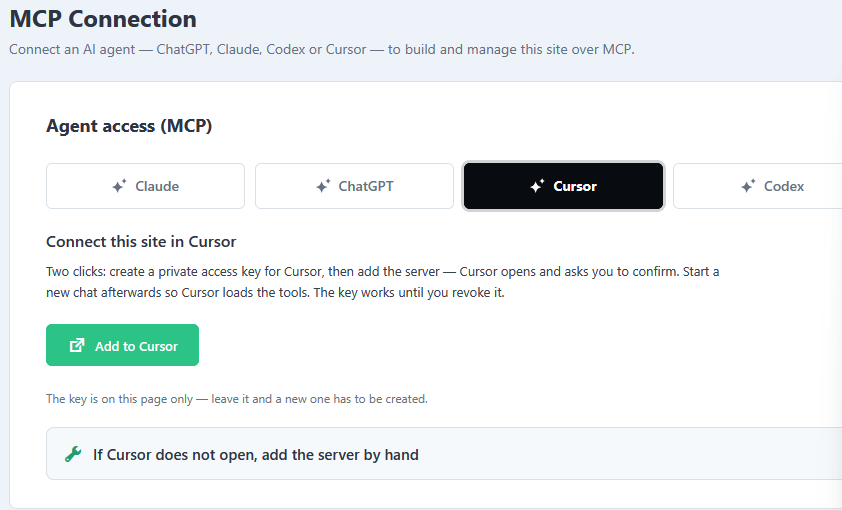
- The quickest route is two clicks: in Fabrement → MCP Connection, pick Cursor and press Add to Cursor. Cursor opens with everything filled in, and you press Install.
- If Cursor does not open, paste the generated instructions into Cursor chat and let it set up the connection, or add the entry to
~/.cursor/mcp.jsonyourself. - Never commit an mcp.json that holds the key. It acts as your administrator user, so a pushed file hands your site to anyone who can read the repository.
- Start a new chat after connecting, so Cursor loads the tools.
Requirements
| What | Needed |
|---|---|
| WordPress | 6.9 or newer. The MCP server does not start on older versions. |
| PHP | 8.0 or newer. |
| HTTPS | Required, except on local development environments. |
| Role | Administrator. |
| Cursor | A current version and a paid plan: Individual ($20 a month) or higher. The free Hobby plan does not include MCP. |
The steps
1. Install the plugin and sign the site in
Install Fabrement, open it in wp-admin and sign the site in to the service. Block code is checked and stored by the service, so nothing can be saved until the site is signed in, including by an agent.
2. Add the site to Cursor in two clicks
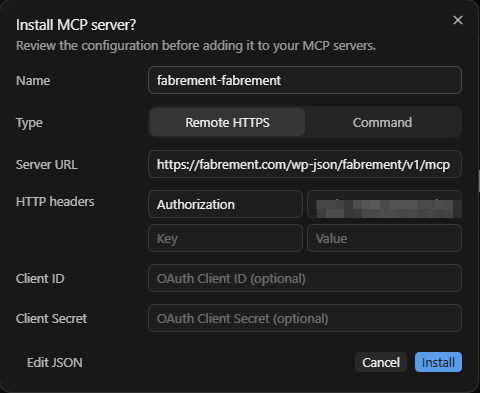
In wp-admin, open Fabrement → MCP Connection, pick Cursor and press Add to Cursor. The plugin creates a private access key for Cursor and opens Cursor with an Install MCP server dialog: the name, the server URL and the key are already filled in. Review them and press Install. The key is shown on that page only: if you leave the page before connecting, create a new one.
3. If Cursor does not open, add the server by hand
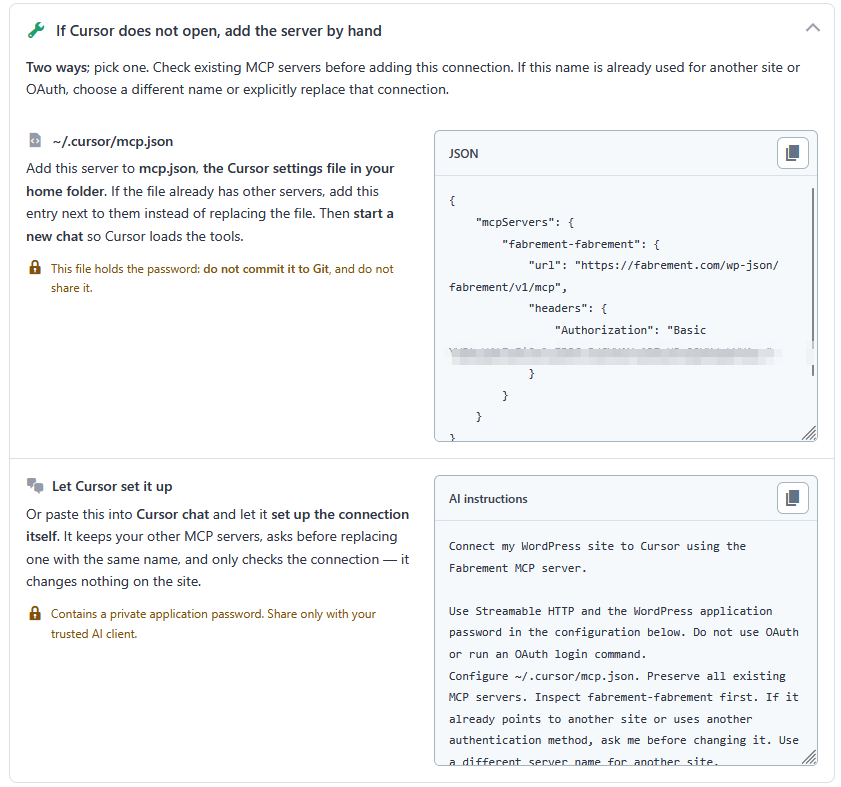
- Let Cursor set it up: copy the AI instructions from the same panel, paste them into Cursor chat, and Cursor configures the connection itself. It keeps your other MCP servers, asks before replacing one with the same name, and only checks the connection: it changes nothing on the site.
- Edit mcp.json: add the server to
~/.cursor/mcp.json, the Cursor settings file in your home folder. The entry has this shape:
{
  "mcpServers": {
    "fabrement-your-site": {
      "url": "https://your-site.com/wp-json/fabrement/v1/mcp",
      "headers": {
        "Authorization": "Basic YOUR_KEY"
      }
    }
  }
}
Copy the entry from your own MCP Connection screen: only that one carries your key, so never type it by hand or copy it from this page. If the file already has other servers, add the entry next to them inside mcpServers rather than replacing the file. The plugin gives the server a name for your site; if that name is already used for another site or for an OAuth connection, choose a different one. This file holds the password, so do not commit it to Git and do not share it.
4. Start a new chat and check the connection
Start a new chat, so Cursor loads the tools. Open Customize in Cursor’s sidebar and check that the server is connected and its tools are enabled. Then ask the agent to list the blocks on your site. If it answers with your real blocks, you are connected. Cursor uses MCP tools on its own when they are relevant, so you do not have to name them. In wp-admin, MCP Connection now shows when the key was last used.
5. Revoke the key when you are finished
The key works until you revoke it. MCP Connection lists every connection to the site, with when it was created and last used: revoke the Cursor key there when you no longer need it, and remove its entry from mcp.json too.
When it does not work
| What you see | What it is |
|---|---|
| Cursor has no way to add an MCP server | You are on the free Hobby plan, which does not include MCP. Upgrade to Individual or higher. |
| Add to Cursor does nothing | Your browser blocked opening Cursor, or Cursor is not installed. Allow it, or add the server by hand (step 3). |
| The agent sees no tools | The chat started before you connected, or the server is switched off under Customize in Cursor’s sidebar. Switch it on and open a new chat. |
| The server name is already taken | Another site or an OAuth connection uses the same name. Choose a different name, or replace that connection on purpose. |
| It works in one project and not another | The entry is in a project’s .cursor/mcp.json. Move it to ~/.cursor/mcp.json to use it everywhere. |
| 401, or “incorrect password” | The key was cut off when copied, or it was revoked. Create a new one with Add to Cursor. |
| The server shows an error | Open the Output panel and choose the MCP logs. Most often it is a JSON typo in mcp.json or WordPress older than 6.9. |
| The first save says the site is not signed in | Step 1 was skipped. |
What Cursor can do once connected
The same as any other agent on the site: build new blocks as code on the site’s design system, create pages from existing sections, edit text and images, manage menus, forms, templates, custom post types and SEO fields. It works through a fixed set of operations, not a shell, so it does not touch the site’s files beyond the blocks it writes, even though Cursor itself can edit files on your computer. The database operation is read-only, and publishing is a separate step from saving. What that looks like in daily work is in three weeks of WordPress without wp-admin.
Frequently asked questions
Should I use the global or the project mcp.json?
Can Cursor edit my WordPress theme files through this?
Can I connect Cursor and Claude Code to the same site?
What does it cost?
Using another client? See how to connect Claude to WordPress and how to connect ChatGPT and Codex to WordPress. What an agent can do once connected is on Build and manage WordPress with MCP.
Sources
Cursor configuration from Cursor’s MCP documentation and pricing page. Fabrement steps from our own AGENTS.md and the plugin’s MCP Connection screen (version 1.4.0). Checked on 2 October 2026. If a step has changed, tell us and we will correct it.
Related articles
How to Connect Claude to WordPress to Build and Run Your Site
Connect Claude to a WordPress site in the browser, the desktop app or Claude Code: one-click OAuth, the terminal commands or a…
How to Connect ChatGPT to WordPress to Build and Run Your Site
Connect ChatGPT and Codex to a WordPress site over MCP: Developer mode and OAuth in ChatGPT, Codex in the desktop app, the…

Running WordPress From Your Coding Agent: What MCP Actually Changes
The Model Context Protocol lets a coding agent operate WordPress directly instead of writing code you copy and paste. Here is what…